Kahf Router BURAQ 6
User manual
Setup, everyday family protection, troubleshooting and help, all in one place.
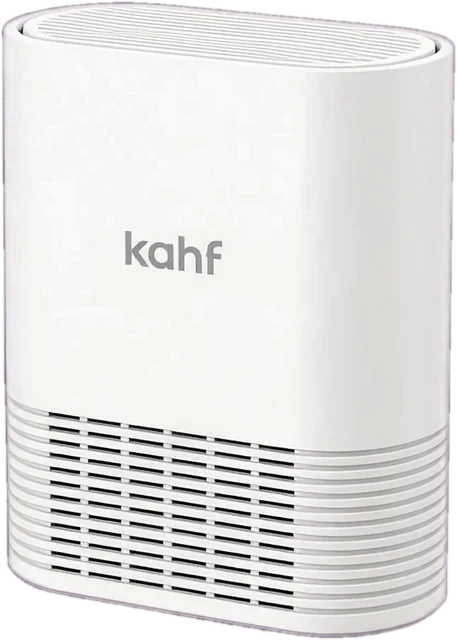
Version 1.0 · October 2026kahf.co/router
Contents
- 1Quick start
- 2Your router
- 3Connect to the internet
- 4Set up the app
- 5Everyday use
- 6Premium
- 7Troubleshooting
- 8How protection works
- 9Privacy
- 10For children
- 11Warranty and help
- 12Glossary
1Quick start
Five steps and your router is running.
- Place the routerPut it in an open, central spot, off the floor and away from thick walls.
- Connect it to your modemPlug the cable from your internet provider's (ISP) modem or fibre box into the router's internet (WAN) port. Then plug in the power.
- Join the WiFiOn your phone, choose the network that starts with
KAHF-and enter the 8-character password. Both are printed on the router's label. The same name works on 2.4 GHz and 5 GHz. - Install the appGet the Kahf Router app from Google Play or the App Store, open it and tap Start.
- Finish setupThe app finds your router, checks the internet, then asks you to set a parent PIN and sign in with your Kahf ID.
2Your router
What you need to know for setup.
- WiFi
- Dual-band WiFi 6 router, 2.4 GHz and 5 GHz
- Reset button
- Hold for 10 seconds to restore factory settings
- Label
- Shows the WiFi name (
KAHF-xxxx) and password - Router page
http://192.168.1.1
3Connect to the internet
During setup, the app asks how your internet works.
Choose this if your provider gave you no username and password.
Choose this if your provider gave you a username and password, and enter them exactly. The app checks the connection.
If it fails, tap Run diagnostics in the app. See Troubleshooting.
4Set up the app
- Choose your language. Bangla and English are available.
- Read the welcome and zone pages, then connect to the router. The app finds it on your WiFi. If it can't, enter the router address yourself.
- Check the internet (see Connect to the internet).
- Set a parent PIN. You need it to change rules later.
- Sign in with your Kahf ID. This saves your router settings so you can restore them.
- Write down the recovery code shown, and keep it away from children.
- Choose the content categories to block, and turn on YouTube restricted mode if you want it.
- Finish. You can skip optional steps now and come back later.
5Everyday use
Zones
Every device starts here. Family filtering and all your controls apply.
Keeps only safe DNS. Use it for adults' devices.
On the Devices page you can move any device between zones. New devices join the Safe Zone automatically.
Content protection (in the Safe Zone)
- Content blocklist blocks whole categories, such as adult content or gambling.
- Blocked websites and Allowed websites let you keep your own lists. Allowed sites win over category blocks.
- Safe Search hides explicit search results.
- YouTube restricted mode hides videos that may be for adults.
- VPN / Torrent block stops attempts to get around the filter.
Time controls
- Bedtime / Offtime: the free plan has one "Every Day" schedule. Premium adds separate weekday and weekend times, and custom days.
- App Time Rules: limit apps or categories. Premium allows a different limit for each day.
Block Internet Now Premium
On the Devices page, switch on Block for a device to cut it off at once. It can still reach the router and the app. Switch it off to restore access.
Guest WiFi Premium
Settings → Guest Access creates a temporary network with its own password. Choose how long it lasts (4 hours, 1 day, 3 days or never) and which zone it uses. Share the password from the app. Tap Remove to stop it.
Firmware, backup and passwords
- Settings → Firmware / Status shows your version and any available update. An update restarts the router and pauses app control for about 2 minutes.
- The router also installs verified updates by itself.
- Back up config to Kahf ID saves your settings.
- Change root password, Parent PIN and Recovery code are in Settings.
7Troubleshooting
Start with Run diagnostics in the app. It makes 7 checks.
| Check | If it fails |
|---|---|
| Router reachable | Join the router's WiFi, then restart the router |
| WAN interface up | Check the cable between the router and the modem |
| IP address received | DHCP or PPPoE isn't working; check your PPPoE details |
| Gateway reachable | Your modem may be offline; restart it |
| Internet connection | Possibly a provider problem; contact your provider |
| DNS resolution | Restart the router |
| No LAN/WAN conflict | Nothing to do; the router changes its address by itself |
Common questions
No WiFi?
Check the power, wait 2 minutes, then check the network name against the label.
Forgot the parent PIN?
Use your recovery code.
A site won't load?
It may be in a blocked category. You can add it to Allowed websites.
A site seems blocked by mistake?
Tell us at support@kahf.co.
Want to start again?
Hold the reset button for 10 seconds. The router returns to factory settings; then set it up again in the app.
What happens in a power cut?
The router restarts by itself. Protection returns as soon as the internet is back.
8How protection works
When your devices look up a website, the router sends the lookup through a family-safe filter. The Kahf blocklist covers 9 categories. Extra rules stop VPN, private DNS and similar workarounds. Safe Search and YouTube restricted mode are enforced at the router. The router checks for verified updates every night.
9Privacy
Filtering runs on the router. The router keeps a short window of DNS statistics. Your Kahf ID stores your settings backup. See the Kahf privacy policy for details.
10For children
Your family's router blocks sites that aren't right for your age. If you think a site was blocked by mistake, ask a parent. They can allow it in the Kahf Router app.
11Warranty and help
- 1-year warranty against manufacturing faults.
- Return within 30 days of delivery for a full refund.
Write to our support team and they'll guide you step by step.
support@kahf.co12Glossary
- WAN
- The port that connects the router to the internet.
- DHCP
- Getting an address automatically from your provider.
- PPPoE
- An internet connection that logs in with a username and password.
- DNS
- Turns a website's name into its address.
- Firmware
- The software inside the router.
- Kahf ID
- Your Kahf account.